
Plugins › Titles
Say it. It captions it.
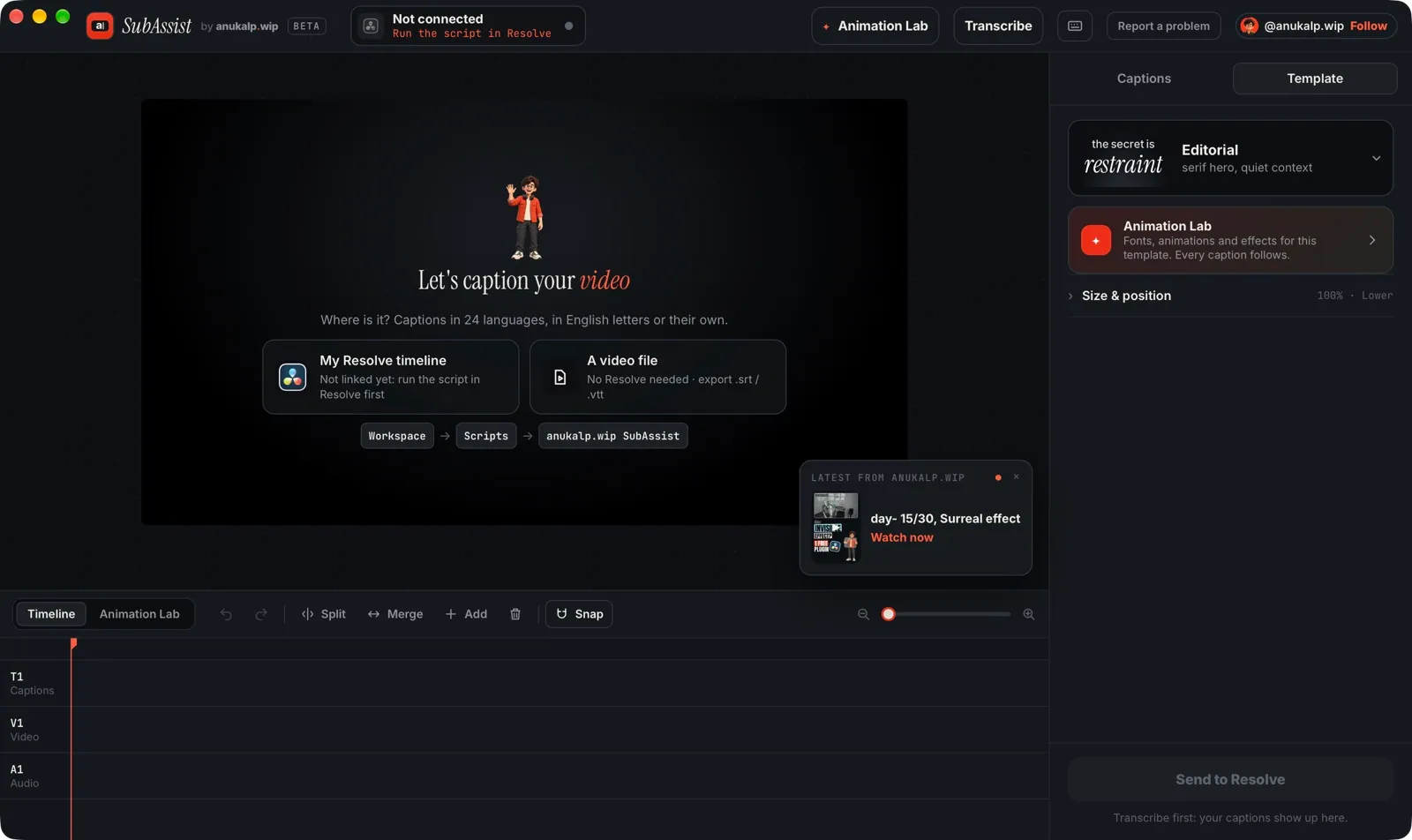
SubAssist listens to your timeline or any video and writes the captions for you, even when one video mixes two or three languages. Pick a look, make every word move the way you want, and send them to Resolve as editable Text+.
Mac with Apple Silicon (M1 or newer) · macOS 14 or newer · Windows 10/11 (64-bit) · DaVinci Resolve 21 (optional)
Important · read before installing
Follow the install steps in the guide that comes with this download.
If you skip these steps and only double-click the .drfx file, the plugin may not work on your computer. See the install steps ↓
How it works
Three steps, one window
- 01
Say it
Open your timeline and run it from Workspace › Scripts, or open any video file. Press Transcribe: it listens on your Mac, in 24 languages, even when one video mixes two or three.
- 02
Style it
Pick a template, then make it yours in the Animation Lab: fonts, how each word comes in, its curve, glow and outline. Click any word to change just that word: bold, slanted, underlined, its own colour.
- 03
Send it
Send to Resolve puts every caption on its own track above your video as editable Text+, animated exactly like the preview. Send again to replace them.
What it does
Captions that move with the voice
- Transcribes on your Mac in 24 languages; one video can mix two or three
- English letters or each language's own alphabet, switch without listening again
- Double-check: uncertain words are listened to again and marked in yellow
- Ready-made templates, plus the Animation Lab for fonts, motion, glow and outline
- An ease curve for how each word comes in, and Bold / Italic / Underline per word
- Send to Resolve as editable Text+, one clip per caption or per word
- Works without Resolve too: caption a video file and save .srt / .vtt
- Runs on your Mac. Your video, audio and captions never leave it
- Updates itself with one click
Use it for
- Reels, Shorts and TikToks
- Podcast and interview clips
- Videos that mix languages (Hindi + English, Tamil + English…)
- Subtitles files (.srt / .vtt) for any editor
Install · about a minute, once
Pick your computer
Important · read before installing
Follow the install steps in the guide that comes with this download.
This plugin has two files, and DaVinci Resolve needs both. After you unzip the download, open the Guide PDF (or How to install.txt) in the same folder and follow the How to install steps for Mac or Windows. Your computer will ask you once to allow the installer. That is normal.
If you skip these steps and only double-click the .drfx file, the plugin may not work on your computer. See the install steps ↓
- 01
Download and open the zip
Then open it. Safari opens it by itself. In Chrome or Firefox, double-click it in Downloads. You get a folder called anukalp.wip-SubAssist. Leave it in Downloads.
- 02
Open Terminal
Press ⌘ Space, type Terminal and press Return.
- 03
Paste this and press Return
Wait for Installed. It takes under a minute, with no password. If macOS says “Paste blocked”, click Paste Anyway. It may also say as-agent can run in the background: that's the small helper that opens the app from Resolve.
bash ~/Downloads/anukalp.wip-SubAssist/install.sh - 04
Open it from Resolve
Open your timeline, then Workspace › Scripts › anukalp.wip SubAssist. Not there? Quit and reopen Resolve. No Resolve? Open the app and pick a video file.
Moved the folder somewhere else? Open How to install inside it: it shows the command for wherever the folder is, plus a short video.

Remove it
Paste this into Terminal. It removes the app, its Resolve script, the helper and its settings. Your templates (Documents › anukalp.wip SubAssist) and captions already in Resolve stay.
bash ~/"Library/Application Support/anukalp.wip/SubAssist/uninstall.sh"- 01
Download and unzip Soon
Then right-clickRight-click the zip and choose Extract all, then Extract. Open the installer from the new folder, not from inside the zip.
- 02
Open the installer
Double-click anukalp.wip-SubAssist-Setup. Windows shows “Windows protected your PC” with only Don't run: click the small More info link, then Run anyway. It's a free app from a small studio, so Windows hasn't seen it before.
- 03
Click Install, then Finish
It installs just for you, so there's no admin password. About a minute. Leave Open SubAssist now ticked.
- 04
Open it from Resolve
Open your timeline, then Workspace › Scripts › anukalp.wip SubAssist. The app shows Connected. Not in the menu? Close and reopen Resolve.
FAQ
Questions
Is it free?
Yes, it's free while it's new.
Does it upload my video or audio?
No. Listening happens on your Mac. The app only checks this website for news and updates.
Which languages?
24, including English, Hindi, Tamil, Telugu, Bengali, Marathi, Arabic, Spanish and French, written in English letters or their own. One video can mix two or three of them.
Does it need DaVinci Resolve?
To send captions to a timeline, yes (21, free or Studio). Without it you can still caption a video file and save .srt / .vtt subtitles.
The first transcription is slow.
The first time, it downloads its speech model once (about 550 MB). After that it starts straight away.
How do I remove it?
Paste the remove command from the install section into Terminal. Your templates and the captions already in Resolve stay.
Is there a Windows version?
Yes, for Windows 10 and 11 (64-bit). Pick Windows in the install section for the steps.
Something not working? Use Report a problem at the top of the app: it reaches me with the details I need, and my answer shows up in the app. Can't open the app at all? Tell me here →
Requirements · version 0.1.6
What you need
| Works on | macOS 14+ (Apple Silicon) |
|---|---|
| DaVinci Resolve | 21 · Free and Studio |
| Released | 21 Nov 2026 |
| Download size | 20.4 MB |
What's new in 0.1.6
- Bangla, Tamil and Telugu subtitles no longer fail with Something went wrong
- Clip names and the Words and Type animations handle Indian letters correctly
- If the helper cannot start, SubAssist shows how to switch it on in Login Items
Full requirements
| Mac | Apple Silicon (M1, M2, M3, M4 or newer). Intel Macs aren't supported yet. |
|---|---|
| Windows | Windows 10 or 11, 64-bit, a processor from about 2013 or newer (AVX2), Microsoft Edge WebView2 (built in on Windows 11) |
| macOS | 14 Sonoma or newer |
| DaVinci Resolve | 21, free or Studio, to send captions to a timeline. Restart Resolve once after installing. |
| Space | About 40 MB for the app, plus its speech model (about 550 MB, downloaded once on first use) |
Free download · Mac · 20.4 MB
Get SubAssist
Enter your email and we'll send the download link.Downloads open soon. Leave your email and you'll be the first to know.
✓ Email confirmed
You're on the list. We'll email you the moment SubAssist is out.
Downloads aren't open yet. Want an email the moment SubAssist is out?
You're in. Every free plugin on the site is unlocked in this browser.
✉ One more step
Check your inbox
We sent a link to . Click it and you come back here with the download ready. Not there? Look in Spam or Promotions.
·
Credits & privacy
Credits and privacy
SubAssist uses whisper.cpp and OpenAI Whisper (MIT), FFmpeg (LGPL 2.1+), and open-licence fonts (OFL / Apache 2.0); full notices travel inside the download. DaVinci Resolve is a trademark of Blackmagic Design Pty Ltd. anukalp.wip isn't affiliated with Blackmagic Design.
The app works on your Mac and doesn't collect your video, audio or captions. When it opens it fetches one small settings file from this website (news, the card picture, updates). Problem reports are only sent when you press Send.